Account Management
Didn't Get an Invitation Email?
You invited someone to your department, but they say the email never arrived. This is one of the most common questions we get, and it's almost always fixable in a minute or two. Work through these checks in order.
Have Them Check Spam and Junk
Invitation emails are automated, so aggressive filters sometimes route them to Spam, Junk, or (in Gmail) the Promotions and Updates tabs. Have the user search their whole mailbox for "Prodigy" before anything else — this resolves the majority of missing invites.
Confirm the Email Address
Open Users in the left sidebar and switch to the Invitations tab. Every invitation you've sent is listed with the exact address it went to:
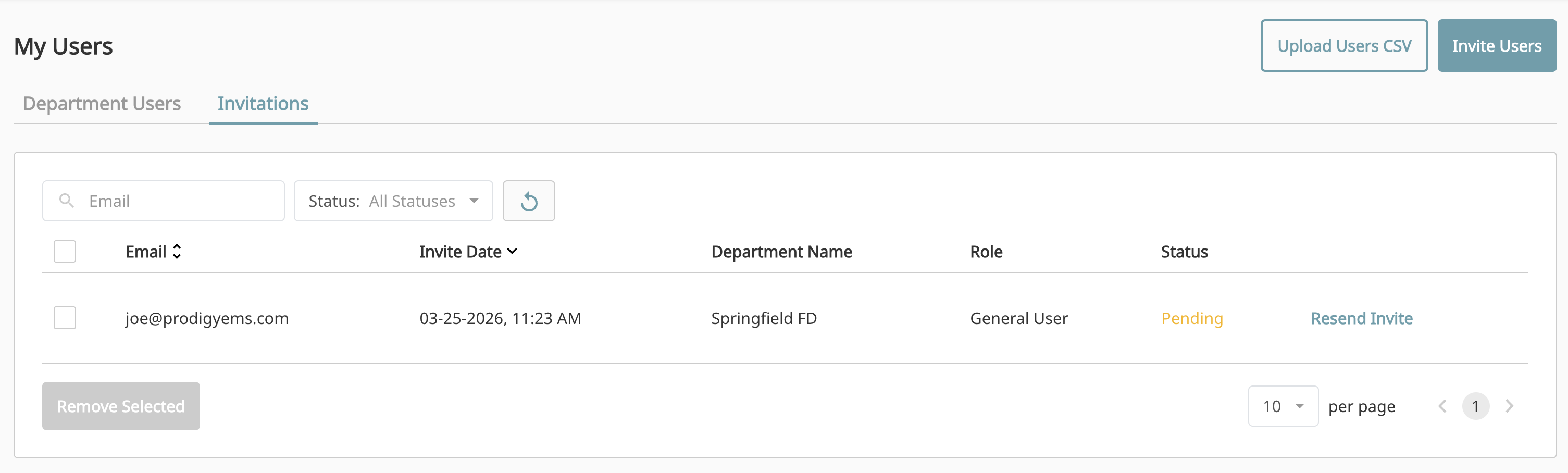
Check the address for typos — a swapped letter or an old work address is a frequent culprit. If the address is wrong, select the invitation, click Remove Selected, and send a fresh invite to the correct address.
Resend the Invitation
If the address is right and the status is still Pending, click the Resend Invite link on that row. A second attempt often gets through, and it confirms for the user exactly when to watch their inbox.
Use the Invitation Link Instead
The Invite Users modal includes a Copy Invitation Link option. Copy the link and send it to the user yourself — by text message, your own email, or your department's messaging tool. Anyone with the link can register and join your department, so share it only with the people you intend to invite.
About the invitation link
The link can be used multiple times and stays valid for one year before it expires. Direct email invitations are still the better default because they give you control over exactly who joins, but the link is a reliable fallback when email delivery is the problem.
Ask IT to Allow Our Emails
On department or municipal email systems, messages from outside senders are sometimes quarantined before they ever reach the mailbox. If invitations consistently fail to arrive for addresses on your organization's domain, ask your IT department to check the quarantine and allow email from the prodigyems.com domain.
Still Not Arriving?
Email Support@prodigyems.com with the address you're inviting and roughly when you sent the invitations. We can check the delivery status of the messages on our side and see exactly where they stopped.
For more on invitations and other ways to add users — including bulk CSV import — see Managing Users.
If the invited person already has a Prodigy account under a different email, they don't need a new one — they can accept the invite on their existing account, or combine two accounts they've ended up with using Merging Accounts. And if they receive the invitation but then can't sign in, point them to Trouble Logging In?.